
Using ChatGPT to Turn GLO Search Results into a Working Spreadsheet
A beginner’s step-by-step workflow for collecting, checking, and organizing federal land patent data
By Kristina Gow Clever, CG®
In this article
Have you searched the General Land Office Records website recently and wondered how you would ever work through all those results? I certainly have.
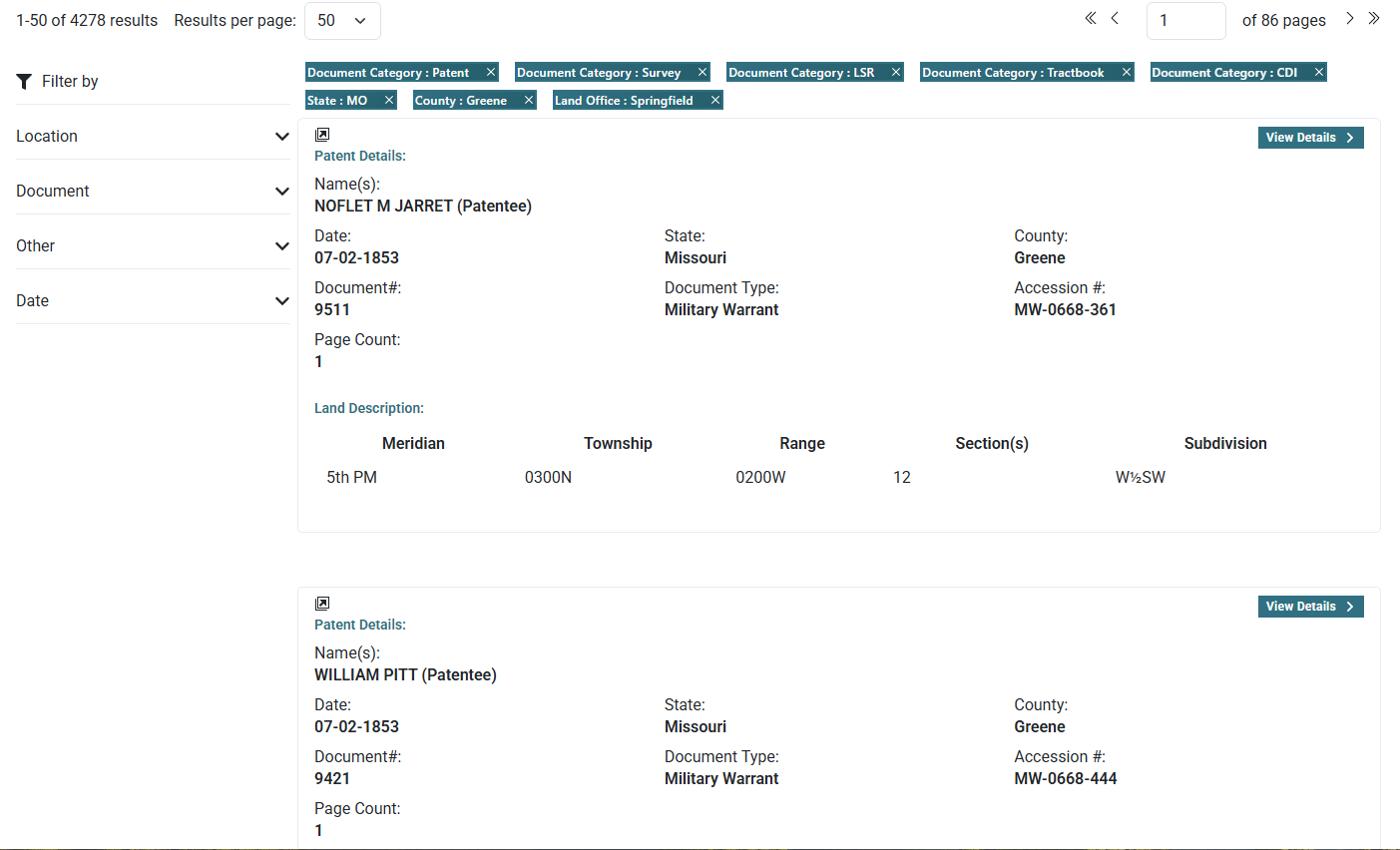
The redesigned website changed a familiar part of my research routine: gathering search results into a list I could easily review, saving to a PDF document, and converting to a workable spreadsheet. I want a spreadsheet with names, land descriptions, and URL links back to the patents. I also want details (Land Office, Authority, number of acres) that now require opening each individual record. It is tedious!
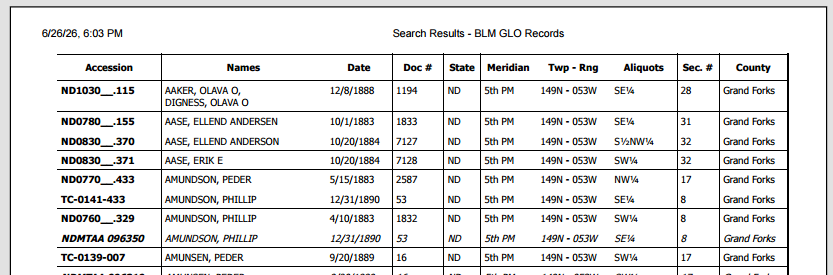
When I searched for Greene County, Missouri, patents processed through the Springfield Land Office, I found 4,278 results. I used to be able to scroll through a table of results, a single row for each land record. The new format, launched in July 2026, has spread each record over 10 rows so that now I can only see one or two records at a time on my screen. Even displaying 50 entries at a time requires scrolling a long list of results and working through 86 pages.
Fortunately, I have a research assistant that can help me collect all that data, organize it, and save me time. My assistant is ChatGPT.
We completed the first batch of 100 records in a spreadsheet with 23 columns. This gave me a sortable finding aid, a way back to each source, and the ability to filter the results. The batch included 36 military warrants, 5 homesteads, and 59 cash entries. The spreadsheet gave me a useful starting point, although the information still needed my review. Two handwritten readings remained uncertain and were flagged for review. That is exactly where my work as a genealogist continues: checking the records, evaluating what they tell me, and deciding which underlying land entry files to pursue.
If you are new to ChatGPT, you can start much smaller. The instructions below walk you through a first group of 10 records. You do not need to write computer code. You will describe what you want, let ChatGPT collect the information where its tools allow, and check the file it produces.
1. Open ChatGPT and check what it can do
Open ChatGPT in the app or your web browser and sign in to your account. Start a new conversation and select Work. This workflow requires access to ChatGPT Work with cloud browsing and file creation. Availability depends on your subscription, workspace settings, and product rollout. At the time of publication, cloud browsing is available on eligible paid plans but not on Free or Go plans.
This workflow was tested in ChatGPT Work and used GPT–6 Sol with reasoning set to Medium with the GLO Records website in November 2026. Features, menus, and website layouts may change.
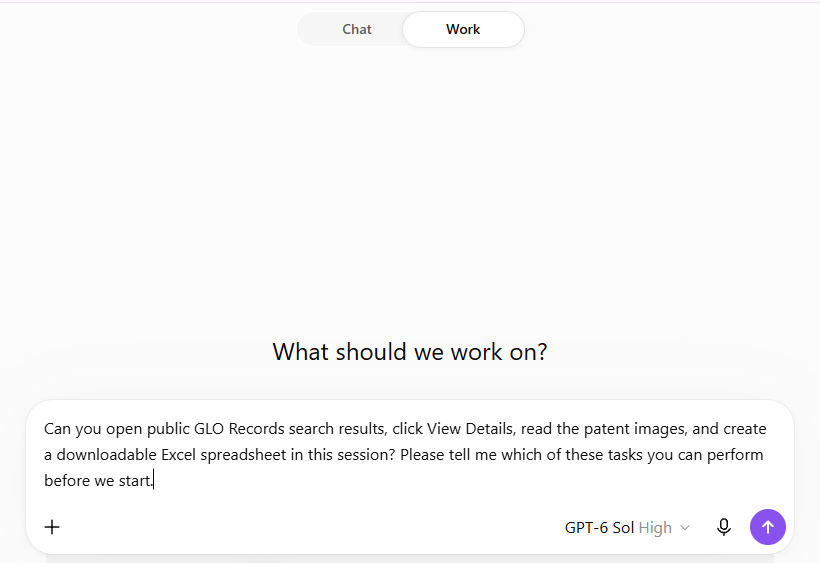
Begin by copying and sending this short prompt (the message that tells ChatGPT what you want):
Can you open public GLO Records search results, click View Details, read the patent images, and create a downloadable Excel spreadsheet in this session? Please tell me which of these tasks you can perform before we start.
If ChatGPT cannot perform those actions, the automatic website workflow described here will not work in that session. You can still ask it to organize search results you copy and paste or work with images you upload. However, those materials must include the information you want extracted.
2. Run your search on the GLO website
Open a second browser tab and go to the GLO Records website (Bureau of Land Management GLO Records). Keep your ChatGPT conversation open in the first tab so you can switch between them.
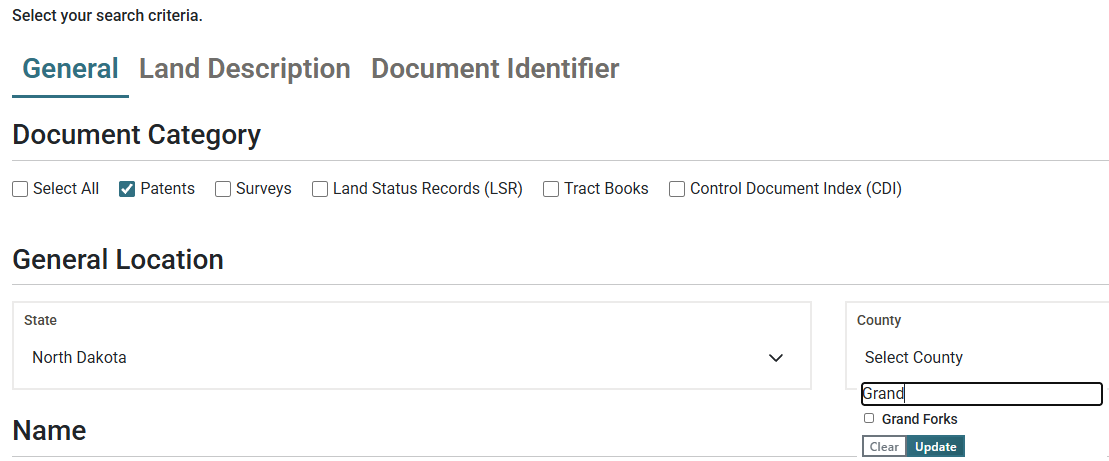
Select the Advanced Search tool located in the top right corner of the page. Choose the record category and search filters for your project. For this example:
- Select Document Category: Patents
- Choose State: North Dakota and click “update”
- Choose County: Grand Forks and click “update”
On the results page, use the Location filters to limit your search results to Township 149N and Range 53W. You may notice an extra zero in the township and range numbers on the new GLO website. For example, Township 149 North appears as 1490N, and Range 53 West appears as 0530W. These refer to the same township and range; the display format has changed, not the location. The spreadsheet preserves the website’s notation so you can compare entries directly with the search results.
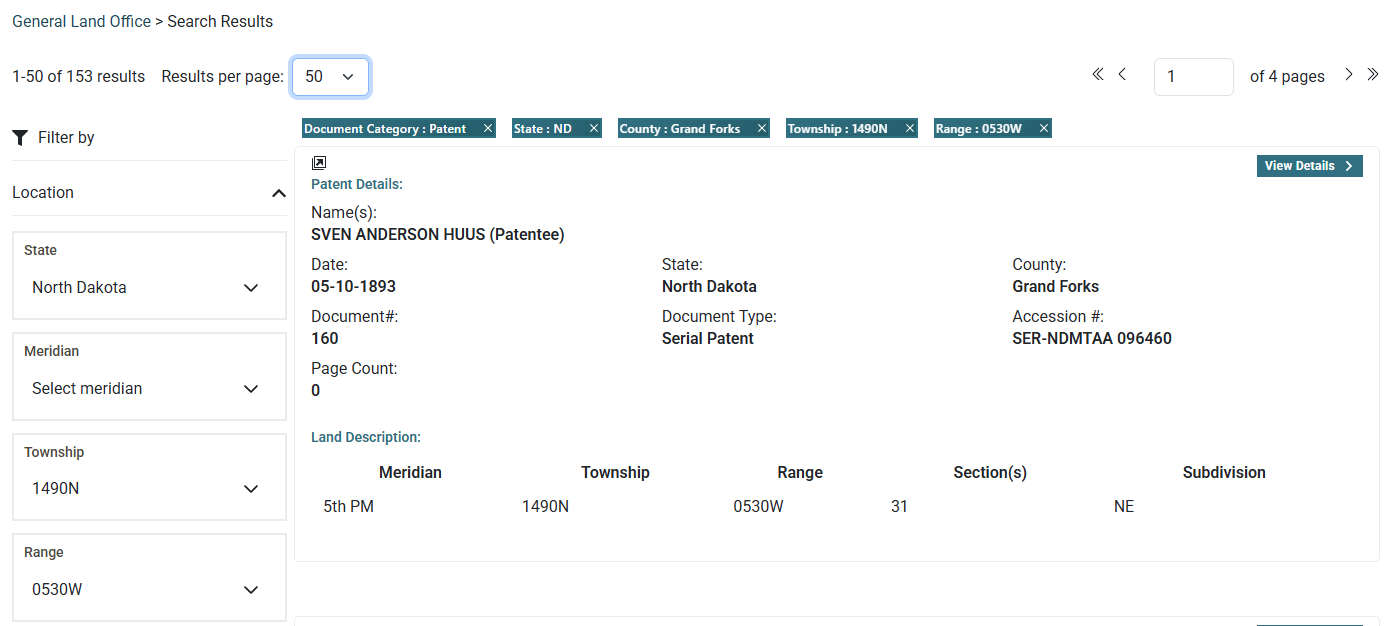
NOTE: You may also substitute your own search and filter terms. If your project includes surveys or tract books, it will need different instructions; the prompt below is written for patents.
Copy the full address from your browser’s address bar. This is the search URL or web address. You will paste it into the prompt in the next step. Be sure to make note of your filter parameters because the URL may not preserve every choice.
Example of a filter check:
The supplied URL currently opens 5,956 Grand Forks County patent results and does not have Township 149N or Range 53W applied. I’ll apply those two filters and check whether the result count becomes 153 before collecting records.
3. Ask for ten records first
A batch is a small group of records processed together. Start with 10 so you can check the layout and the extracted information before requesting more.
The longer prompt below tells ChatGPT what to collect and where to look. You do not have to understand every spreadsheet instruction to use it. Copy everything between “Begin prompt” and “End prompt” into a blank document. Replace the bracketed items with your search terms. You may not need all the filters included or you may want to add more. Copy and paste the updated prompt into the ChatGPT message box, and send it.
For example, replace “[state]” with “North Dakota” and “[county]” with “Grand Forks.” Include any additional filters for your specific search (for example: township, range, section, etc.).
Begin prompt
Please create an Excel spreadsheet from this GLO Records search. Complete only the first 10 patent records for now.
Search URL: [paste the full search address]
State: [state]
County: [county]
Township: [number]
Range: [number]
Land Office: [office name]
Total results shown: [number]
Date of my search: [date]
Sort order: current displayed orderBefore collecting records, check that the website shows the same filters and result count. Resolve any discrepancies before collecting records.
Use one row per patent and these 24 columns, in this order:
Last Name(s); First Name(s); Name(s) as Indexed; Patent Date; Document #; State; Meridian; Township; Range; Section(s); Subdivision; Total Acres; County; Land Office; Authority;
Application/Scrip #; Original Warrant Recipient (Soldier); Soldier Unit Info; Document Type; Accession #; GLO Record URL; Notes; Page Count; Result #.Collect the fields shown in the results list. Transcribe source information; do not infer missing names, relationships, legal authority, or land descriptions from another record.
For each record, open View Details and then the Details tab to obtain Land Office, Total Acres, and Authority.
Record the displayed sort order, search-results page, result-number range, and the first and last accession numbers collected. If the website does not identify its sort order, state that in Batch Notes. Use accession numbers—not names—to determine whether a record was previously collected.
For homestead, Supreme Court scrip, and timber-culture patents, read the application number from the patent image. Record the number in the Application/Scrip # column. Do not confuse it with the final certificate or document number. For military warrants, read the original soldier’s name and unit information from the image. The soldier may differ from the indexed patentee or assignee. Explain any stated widow, heir, or representative relationship in the Notes column. Record a Supreme Court Scrip number when applicable; do not substitute a military warrant number.
Preserve indexed spellings and initials. Separate first and last names without guessing. Keep the complete indexed name text in its own column. When a patent lists multiple patentees or multiple parcels, place corresponding values on separate lines within the same row and preserve their order across the related columns. Preserve all land descriptions, using matching lines across the land columns when there is more than one parcel.
Format Document #, Accession #, and Application/Scrip # as text so leading zeros are preserved. Store every Patent Date as YYYY-MM-DD text. Store Total Acres as a numeric value.
Use the public-facing GLO portal link obtained through the record’s “Open in new tab” control. Do not use an embedded viewer URL, image-download URL, or a URL containing an access token. Open each final link independently and confirm that its accession number matches the spreadsheet row. Store the complete public URL as visible cell text and attach a native Excel hyperlink to that cell. Do not use the HYPERLINK formula. If a link cannot be verified, enter NOT VERIFIED and explain the problem in Batch notes.
Leave inapplicable fields blank. Use NOT SHOWN for applicable information absent from the source and NOT VERIFIED for information you could not check. Mark uncertain handwriting with brackets and a question mark, such as [surname?], and explain it in the notes.
Add a Batch notes sheet with the search details, access date, completed records, and any problems. Identify record-specific notes by accession number and result number. Save copies of the collected data as you work. Check for skipped records, accidental duplicates, and details attached to the wrong patent. Add column filters and keep the header row visible while scrolling.
I authorize you to open the public GLO search, record details, and linked patent images; download relevant public images if needed; and create and save this spreadsheet. Tell me if I need to approve website access. Do not bypass access restrictions or share the file with anyone else.
After saving the .xlsx, reopen and inspect that exact file. Confirm that all requested columns, records, text identifiers, dates, numeric acreage, filters, and frozen headers are preserved. Check that hyperlinks are present and point to the verified public URLs. Inspect every column for clipped text, unreadable wrapping, formula errors, or unsupported-function messages. Verify that multiline names and land descriptions remain aligned. Correct any problems before returning the file and identify any checks that could not be completed. Adjust rows and columns to fit content.
Return the actual downloadable .xlsx file, not just a table in the conversation. State how many records it contains and what remains uncertain. If you cannot finish, save a clearly labeled partial file and explain what remains to be done.
End prompt
4. Approve access when ChatGPT asks
You do not need to set up a long list of permissions in advance. Watch for an access request in the conversation. Read which website and action it names, then approve it if it matches the GLO task you requested. ChatGPT may need to open linked pages that supply the record images.
For ChatGPT Work on the web, website permissions can also be managed under Settings > Cloud browser. Approving relevant sites individually is sufficient. You do not need to choose “Always allow” for every website. Our public GLO search did not require a GLO login.
Permission in your prompt explains what you authorize. It does not activate a missing tool or override a website restriction. If ChatGPT reports a block, ask it to explain the problem and preserve any completed work.
5. Download and open the spreadsheet
ChatGPT may post progress messages while working. Wait for the finished file or a clearly identified partial file. A message saying that records were collected is not the same as receiving a spreadsheet. This example ran for just over 18 minutes.
Look for the file attachment or download link in its response. Use the download option to save it to your computer, then open it in Excel or another program that supports Excel files. The .xlsx ending identifies an Excel workbook. Choose a filename you will recognize, such as GLO_ND_Grand_Forks_149N_53W_First_10.xlsx.
If ChatGPT gives you only a table in the conversation, send this message:
Please put these results into a downloadable Excel workbook and provide the .xlsx file. Include the Batch notes sheet and identify any incomplete fields.
6. Check the first batch before requesting more
For your first 10 records, compare each spreadsheet row with its GLO record. The small starting batch makes this practical and helps you catch problems before they are repeated.
- Count the records. There should be 10 data rows, plus the row of column headings.
- Check the names, date, document number, and accession number against the results list. The accession number is GLO’s identifying number for the record.
- Open View Details and compare the land office, acreage, authority, and land descriptions.
- Check homestead application numbers and soldiers’ names against the patent images. Review every uncertain reading.
- Try the record links and confirm that they lead to the correct patents.
- Read the Batch notes sheet for missing information or problems.
If you find an error, identify the record and the problem. Ask ChatGPT to correct it. For example:
Please recheck accession number [number]. The value in Homestead Application [#] appears to be the certificate number. Read the application number from the image, correct the workbook, and return the revised file.
Remember that a name appearing twice does not necessarily mean a duplicate error. One person may have several patents. Compare accession numbers before removing entries.
After verifying this first batch, you are ready to proceed to the next step.
7. Continue with the next small group
Once the first batch looks right, stay in the same conversation. If ChatGPT cannot access the preceding workbook, attach your downloaded copy before sending the continuation prompt. Send the following prompt:
Continue the same GLO search with the next [#] uncollected patents. Use the previous workbook to check which accession numbers are already included. Keep the same columns and formatting. Recheck the filters and search order. Add these results to the previous batch but save as a new cumulative Excel file, and report any gaps, overlap, or uncertain readings.
You can request larger batches once the process is working well, but a request for hundreds of records may involve substantial browsing and image review. There is no dependable usage estimate for each batch.
If work stops, ask ChatGPT to save the completed records and list what remains unfinished. In my project, an earlier browser session expired and unsaved information had to be recovered. Keeping downloaded copies prevents a progress message from becoming your only record of the work.
Download and check each file before continuing.
You may be able to automate the process for larger indexing projects. Depending on your subscription, you can schedule automated continuation. Instructions and testing for this are in progress.
ChatGPT can reduce the repetitive work of collecting and organizing GLO search results, but the spreadsheet is only the beginning. By working in small batches, preserving links to the records, and checking every extracted value, genealogists can reduce the tedious workload of creating the spreadsheet and allocate time to verifying and analyzing the results.
